Today I have search a guide to using a wubi. Wubi is the application that give you a chance to install ubuntu in Windows. This the link exclusive for you guys:
http://www.ubuntugeek.com/the-extremely-simple-guide-to-installing-ubuntu.html
Hopefully its will help you and enjoy.
Monday, October 20, 2008

Friday, October 17, 2008
My new blog skin
Hi guys,
Actually, I just have a limited time to change the template/skin for my blog. All my friend have commented for the template/skin for my blog. Thank you for commenter. I realize my blog got an errors on template and the word is far below on the bottom of blog.
Lastly, thank you for all commenters. TQ
Actually, I just have a limited time to change the template/skin for my blog. All my friend have commented for the template/skin for my blog. Thank you for commenter. I realize my blog got an errors on template and the word is far below on the bottom of blog.
Lastly, thank you for all commenters. TQ
Wednesday, July 9, 2008
How to: Setup Flyback for backing up your data
Intro: Most of people go to Apple's Time Machine for thier backup software. The software is a great feature in their OS, and Linux has almost all of the required technology already built in to recreate it. This is a simple GUI to make it easy to use. In Linux its call Flyback. Most of peoples also called "Time Machine for Linux".
Below is the way to install it on Ubuntu:
1. Install the dependencies first
# sudo apt-get install python python-glade2 python-gnome2 python-sqlite3 python-gconf rsync
2. Download the flyback software
# wget http://flyback.googlecode.com/files/flyback_0.4.0.tar.gz
3. Then change to the new directory ("flyback/src/" or "flyback/", depending on which you chose above) and run:
4. Run this command
# python flyback.py
5. Finish
Tips:
To install, don't login as root. You need to run as sudoer. The system won't install and run as root.
Some screenshot for the flyback software:
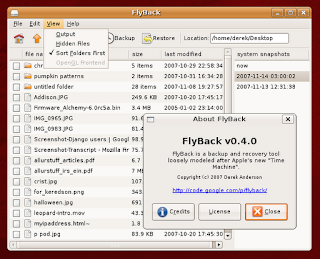
Below is the way to install it on Ubuntu:
1. Install the dependencies first
# sudo apt-get install python python-glade2 python-gnome2 python-sqlite3 python-gconf rsync
2. Download the flyback software
# wget http://flyback.googlecode.com/files/flyback_0.4.0.tar.gz
3. Then change to the new directory ("flyback/src/" or "flyback/", depending on which you chose above) and run:
4. Run this command
# python flyback.py
5. Finish
Tips:
To install, don't login as root. You need to run as sudoer. The system won't install and run as root.
Some screenshot for the flyback software:

Saturday, May 10, 2008
New Ubuntu 8.04 (Hardy Heron)
This is the way I like with Ubuntu. Its a productive distro and the main reason is its user friendly Linux ever (Just my opinion). Last day, I just send email to all my staff. Oh God, they are reply my email with the good comments, even they ask me the CD (hahahaha...become supplier for my office).
Below is the good thing about latest Ubuntu 8.04:
1. The desktop CD allows you to try Ubuntu without changing your computer at all, and at your option to install it permanently later.
2. You will need at least 384MB of RAM to install from this CD.
3. Coming on 2 type: Desktop and Server
4. Holy shits...its can install on windows. See picture below. This is the screen shot when you put your CD on your CD drive.

5. New desktop appearance. (Nice desktop graphic)
Hopefully the Ubuntu can be the best distro/Linux flavor on the future.
Below is the good thing about latest Ubuntu 8.04:
1. The desktop CD allows you to try Ubuntu without changing your computer at all, and at your option to install it permanently later.
2. You will need at least 384MB of RAM to install from this CD.
3. Coming on 2 type: Desktop and Server
4. Holy shits...its can install on windows. See picture below. This is the screen shot when you put your CD on your CD drive.

5. New desktop appearance. (Nice desktop graphic)

Hopefully the Ubuntu can be the best distro/Linux flavor on the future.
Wednesday, January 16, 2008
Tuesday, January 1, 2008
Ubuntu 7.10 with Beryl 0.20 video
Above is video about Ubuntu 7.10(Gutsy Gibbon) with Beryl 0.20 install. Its rock baby!
Video from: skataliticoatl......thanks
Tuesday, December 25, 2007
How to: Install IE4Linux on Ubuntu 7.10 (Gutsy Gibbon)
Hi guy!, I just post this matter after I have asking from my friend, how to install "Internet Explorer " on Linux. Sometime, web base application didn't matching the code with others browser. Thats why my friend ask me to do that. I suggest him to use IE4Linux. This is the way I install the IE4Linux on Ubuntu 7.10(Gutsy Gibbon)
1. Make sure you login your Ubuntu Linux with normal user. Don't login as root. Sometime IE4Linux won't come out or launching when you login as root after install.
2. Open your terminal
3. Open /etc/apt/sources.list with command. For this case I use gedit. Please use your favorite editor for easy editing. For example Vi editor, Nano editor etc.
1. Make sure you login your Ubuntu Linux with normal user. Don't login as root. Sometime IE4Linux won't come out or launching when you login as root after install.
2. Open your terminal
3. Open /etc/apt/sources.list with command. For this case I use gedit. Please use your favorite editor for easy editing. For example Vi editor, Nano editor etc.
sudo gedit /etc/apt/sources.list4. Uncomment (or add) following lines:
deb http://us.archive.ubuntu.com/ubuntu gutsy universe7. Download IEs 4 Linux and install
5. Add this line:
deb http://wine.budgetdedicated.com/apt gutsy main
6. Close gedit. Update and install wine and cabextract:
wget -q http://wine.budgetdedicated.com/apt/387EE263.gpg -O- | sudo apt-key add -
sudo apt-get update
sudo apt-get install wine cabextract
wget http://www.tatanka.com.br/ies4linux/downloads/ies4linux-latest.tar.gz
tar zxvf ies4linux-latest.tar.gz
cd ies4linux-*
./ies4linux
Subscribe to:
Posts (Atom)